
Records, imports, and enrichment
Import contacts as CRM People from CSV or Excel, map and check fields, avoid duplicates, try sample data, control automatic capture, and enrich records.
This guide shows you how to get customer records into Spacebrain CRM and keep them clean. It covers importing a spreadsheet, adding records by hand, trying sample data, merging duplicates, controlling what's captured automatically, and enrichment.
Before you begin
- You need editor access or higher to import or create records. If Import is missing or greyed out, ask a workspace admin. It's also greyed out when your plan's CRM record limit is reached.
- Check you're in the right workspace before uploading customer data.
- Export a backup from your old system first.
How to import contacts into CRM
Spacebrain calls a customer contact a Person. To import contacts, open CRM → People and choose Import. The same importer works on Companies and Leads.
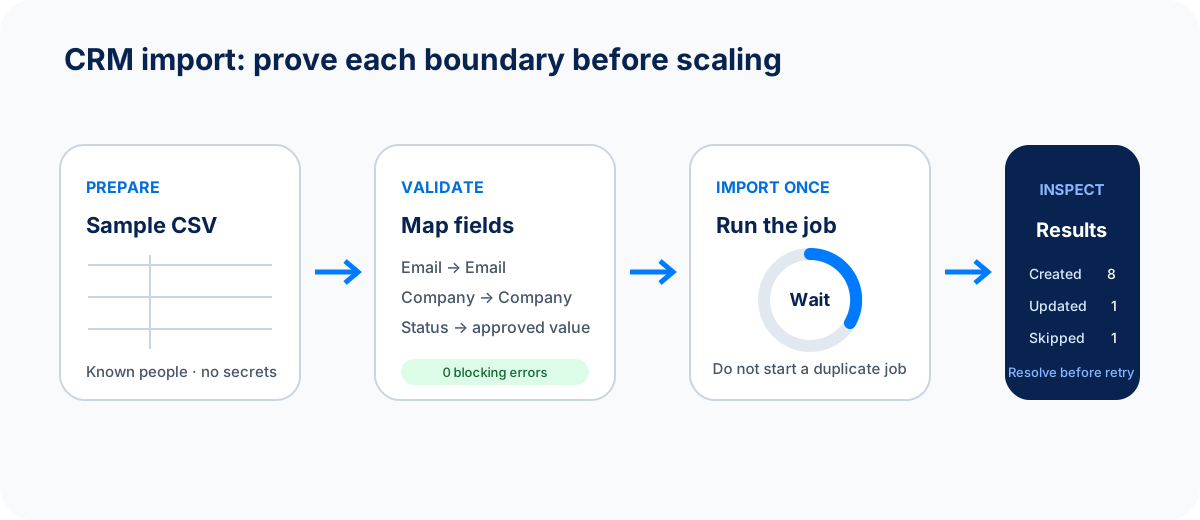
A finished upload is only the start. Check the result counts and open a few records before you import more or turn on automations.
The importer has five steps: Upload, Match fields, Check file, Review & import, and Results.
Step 1: Upload
- Prepare a CSV or XLSX file up to 10 MB and 50,000 rows. Put column names in the first row.
- Include an Email column for People and Leads, or a Company Name column for Companies.
- Drop the file on Drop your CRM export here, or choose Choose file.
Nothing is imported until you confirm at the end.
Step 2: Match fields
- Check each column under Map To. Spacebrain suggests matches. Review every one, especially emails, phone numbers, and consent fields.
- For columns you don't need, choose Skip this column.
- For a column with no matching field, choose + Create new custom field, or create the attribute first in CRM → Attributes.
- Under Import Options, decide whether to tick Update existing records if match is found. It's off by default. If you tick it, choose Match records by: Email, External ID, or Phone. Companies can also match by Company Name or Domain.
- Optionally add Tags (comma-separated), for example
import-sept-2026, old-crm, so you can find this batch later. - For Leads, choose the Pipeline & stage they should start in.
- Choose Check file.
Step 3: Check file
Spacebrain shows Valid Rows, Errors, and Warnings. Fix errors in your file, upload it again, or choose Re-validate. When there are no errors, choose Review import.
Step 4: Review & import
Check the summary. It says whether records will be created or updated. There's no automatic undo. Tick I reviewed the fields and warnings and want to import these records. and choose Start Import. For large files, choose Close — continue in background.
Step 5: Results
Check the Created, Updated, Skipped, and Failed counts. If rows failed, choose Download Error Report, fix only those rows, and import them again.
What you should see: Import Completed. Open five or so imported records and check names, emails, owners, and tags.
Example
You have 2,400 contacts from your old CRM. First, import 20 of them with the tag test-import. Check they look right. Then import the rest with Update existing records if match is found ticked and Email as the match, so the 20 test records are updated, not duplicated.
Imports can start automations
If automations, sequences, or scoring rules watch the fields you're importing, a large import can trigger them for every record. Pause or narrow those automations before importing, and turn them back on after you've checked the results.
Leads, People, or Chat & Voice Contacts?
- People: lasting customer contacts.
- Leads: people you're still qualifying. Use CRM → Leads → Import.
- Chat & Voice → Audiences: a call list for voice outreach. It's separate from the CRM.
Create a record by hand
- Search first, by email, phone, or name, to avoid a duplicate.
- Open CRM → People, Companies, or Leads and choose the create button, for example New Company.
- Enter the essentials and choose an owner.
Open a record to see its tabs. A Person has Overview, Activity, Audiences, Emails, Calls, Team, Notes, Agreements, Tasks, Files, and Enrich. A Company has similar tabs plus Associated deals. Some tabs depend on your plan.
Companies get a logo automatically from their website where possible. You don't need to upload one.
Try sample companies
On CRM → Companies, choose Try sample data to add ten fictional companies. They're normal records you can edit, add notes to, and use to try views and filters.
When you're done, choose Remove sample data, then Remove samples. Only the sample companies are removed; your own records aren't touched. If you see Update sample data, you have an older sample set. Choose it to replace it with the current one.
Sample data isn't a substitute for testing a real import with a small file.
Merge duplicates
- On People or Companies, choose Duplicates. Or open CRM → Data Quality and choose Duplicate people or Duplicate companies.
- For each match, check the details and the confidence score. Choose which record to Keep.
- Choose Continue, or Skip if they aren't really the same.
- Choose Confirm merge.
Empty fields and activity from the merged records are kept on the one you keep. The others are archived. Merging can't be undone from this screen, so check ownership, consent, and deals first.
CRM → Data Quality also lists records with a missing name, missing contact details, invalid emails or phone numbers, and more. Filter by issue and choose Open record to fix each one.
Control what's captured automatically
Spacebrain can add or update People and Companies from real emails, calendar events, and meetings. Open CRM → Capture to choose how:
- Under Capture interactions, choose Off, Only replies or attended meetings, Outbound, replies, and attendance, or Every eligible interaction.
- Choose whether to Create people when eligible and Create company records.
- Leave Include personal email domains off unless you sell to individuals. When it's off, Gmail, Outlook, iCloud, and similar addresses are ignored.
- Under Do not track, add emails or domains that should never be captured, such as your accountant or your own company.
- Use Preview a capture to test an email address. Choose Preview decision. Previews never change CRM data.
- Choose Save policy.
Enrich a record
Enrichment reads your connected mailbox to suggest details about a lead, person, or company.
- Connect Gmail or Microsoft email if you haven't. Otherwise you see No email account connected.
- Open the record's Enrich tab and choose Enrich from Emails.
- Review AI Suggestions, Suggested Notes, and Suggested Tasks. Choose Add on the ones you want.
To enrich several leads, select them on Leads and choose Enrich from email. The confirmation shows how many leads will be enriched and that it uses AI credits.
Enriched details can be out of date or about someone with a similar name. Check important facts, and never treat enriched data as consent to contact someone.
Export and clean up
Apply the view and filters you want before you Export, and check the row count. Treat the file as customer data. Before a bulk edit or delete, start with a small selection and double-check the workspace and count.
If something goes wrong
- "File is larger than 10 MB." Split the file into smaller parts.
- "Unsupported file type." Save the file as CSV or XLSX.
- Lots of rows were skipped. They probably matched existing records while updates were off, or were missing the required column.
- Duplicates after import. Use Duplicates to merge them, and next time tick Update existing records if match is found.
- Enrich from Emails is greyed out. The record needs an email, you need a connected mailbox, and you need enrichments or credits available.
See CRM import troubleshooting for more.
Contact import FAQ
Does an import automatically prevent duplicate contacts?
No. Update existing records if match is found is off by default. Turn it on and pick a match field when you're importing records that may already exist.
Why can't I see the Import button?
You need editor access or higher, and your plan's record limit must not be reached. Ask a workspace admin or owner.
Should contacts go into Leads, People, or Chat & Voice Contacts?
Use People for customers, Leads for people you're qualifying, and Chat & Voice → Audiences for a voice call list. See the CRM overview.
Next step
Add context to your records with CRM Notes.
Next step
Keep moving
Open the relevant Spacebrain screen or contact support if you need help.
Last updated on